Online stores face growing threats like fake orders, spam, and refund abuse. With IP Address Blocking in WooCommerce, you can effectively block suspicious users and protect your store from fraud and bot attacks.
When you block IPs in WooCommerce, you stop fraudsters before they can even reach the checkout page. It’s a powerful, preventative tactic that not only protects your profits but also improves site performance and ensures a secure experience for legitimate customers.
Read this full guide on blocking and blacklisting users in WooCommerce
Why IP Blocking Is Essential for WooCommerce Store Security
Every device that visits your site leaves behind an IP address—a unique numeric ID that tells you where it’s coming from. These IPs are valuable for:
- Tracking user behavior
- Detecting fraudulent patterns
- Blocking bad actors before they can do damage
Unfortunately, many scammers exploit fake or temporary IPs to carry out spam, fraud, and chargeback scams.
What Is an IP Address?
In simple terms, an IP (Internet Protocol) address functions like a digital street address. It allows devices to communicate with websites and apps across the internet.
Types of IP Addresses:
- IPv4 – The most common format, e.g., 192.168.1.1
- IPv6 – A newer, expanded format created to support more devices
For WooCommerce, these addresses are useful identifiers to help filter and secure incoming traffic.
Key Benefits of Blocking IP Addresses in WooCommerce
- Prevent Fake Orders: Stop scammers using repeat or bot-generated IPs
- Protect Store Reputation: Minimize spam reviews, fraud attempts, and disputes
- Reduce Chargebacks: Block known offenders before they can exploit checkout
- Manage High-Risk Locations: Restrict access by region using IP or geolocation filtering
Use Plugins for Smarter IP Blocking in WooCommerce
Rather than manually block IPs in your server settings, it’s much easier and safer to use a WooCommerce plugin. One of the most recommended tools for this is:
Aelia Blacklister for WooCommerce
The Aelia Blacklister plugin makes IP blocking and fraud prevention simple, even if you’re not a developer. With just a few settings, you can automatically block users based on:
- IP addresses
- Email addresses
- Phone numbers
- Billing/shipping details
- Geolocation
It’s a complete tool for keeping malicious users out of your WooCommerce store.
Key Features of Aelia Blacklister
- Custom Rules: Block specific users or patterns (e.g., all users from a domain or region)
- Regex Support: Use pattern-based blocking for flexible control
- Custom Error Messages: Explain why users are blocked to maintain transparency
- Geolocation Blocking: Stop traffic from high-risk countries
- Checkout-Level Blocking: Prevent orders from being placed by blocked users
- No Code Needed: Designed for non-technical WordPress users
It’s a powerful plugin made with security-conscious WooCommerce store owners in mind.
How to Install Aelia Blacklister for WooCommerce
Step 1: Purchase and Download the Plugin
- Visit the Aelia product page and purchase the Blacklister plugin.
- Once your purchase is complete, you’ll receive a downloadable ZIP file containing the plugin.
Step 2: Log in to Your WordPress Dashboard
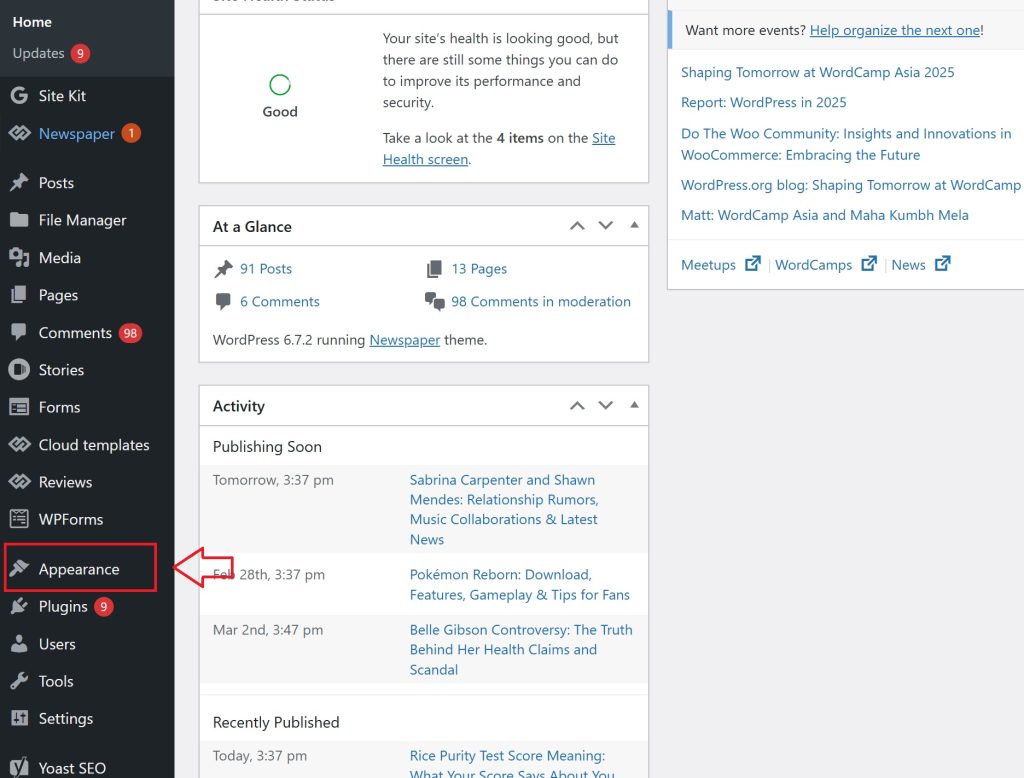
- Open your web browser and go to your WordPress login page (typically www.yoursite.com/wp-admin).
- Enter your login credentials and click Log In to access your admin panel.
Step 3: Navigate to Plugins → Add New

- In the WordPress admin sidebar, hover over Plugins.
- Click on Add New from the dropdown menu to access the plugin installation page.
Step 4: Upload the Plugin ZIP File

- At the top of the page, click the Upload Plugin button.
- Click Choose File, then locate and select the Aelia Blacklister ZIP file from your computer.
Step 5: Install the Plugin
- After selecting the file, click Install Now.
- WordPress will begin installing the plugin. This may take a few moments.
Step 6: Activate the Plugin
- Once installation is complete, click the Activate button to enable the plugin on your WooCommerce store.
Setting Up IP Blocking with Aelia Blacklister

Once activated:
- Open the Aelia Blacklister settings
- Locate the IP Blocking section
- Enter any IPs you want to block
- Save the settings—those users will now be denied access at checkout
Want more protection? You can also block:
- Email addresses
- Usernames
- Phone numbers
- Shipping/billing addresses
- Entire countries or regions via geolocation
This multi-layered defense system makes it one of the most complete WooCommerce security solutions available.
Bonus Plugin: Aelia Currency Switcher

If your store serves a global customer base, consider combining Aelia Blacklister with the Aelia Currency Switcher plugin. It displays product prices in each customer’s local currency using live exchange rates, making checkout faster, clearer, and more trustworthy for international buyers.