TLDR
When a WordPress plugin stops working, the culprit is almost always a conflict, a compatibility gap, or a bad update. The five-minute fix is to deactivate the plugin, reactivate it, and reload the page. If that fails, disable every plugin and turn them on one at a time until the error reappears.
This post walks through both routes, shows the four mistakes beginners make when a plugin acts up, and ends with a short exercise to try on your own site so you are ready before the next plugin problem lands.
You open the admin, click a plugin, and something is off. A contact form no longer sends. The slider has vanished. A settings page throws a white box with that dreaded ‘critical error’ message. Before you panic, know this: plugin failures in WordPress almost always trace back to one of four predictable causes, and the fix is rarely as painful as the error looks.
This guide covers the five-minute fix that sorts most cases, the slower one-at-a-time routine when the quick fix fails, and the four mistakes we see beginners make when a plugin stops working. Work through it in order and you will almost certainly be back up before you need lunch.
Before you blame the plugin: three quick checks
Half of “the plugin is broken” calls turn out not to be the plugin at all. Thirty seconds of triage saves you an hour of chasing the wrong thing.
- Clear your browser cache and hard-refresh the page (
Ctrl+F5on Windows,Cmd+Shift+Ron Mac). Old cached files cause a surprising share of “it’s broken” reports. - Try a different browser or an incognito window. If the plugin works there, the issue is your session, not the site.
- Log in as a different user if you have one. Some plugin behaviours only apply to specific user roles.
The five-minute fix: deactivate and reactivate
Most plugin failures are resolved by toggling the plugin off, then on again. It feels too simple to work, but it forces the plugin to reinitialise its options and often clears temporary glitches caused by a recent update.
- In WordPress admin, go to Plugins, Installed Plugins.
- Find the plugin that is misbehaving.
- Click Deactivate. Wait for the admin to confirm.
- Click Activate. Wait again.
- Reload the page where you saw the problem.
If the problem is gone, you are done. If not, keep reading. The slower routine below will find the cause.
Common mistakes beginners make here
- Reinstalling the plugin fresh before identifying the cause. If the problem is a conflict with another plugin, reinstalling changes nothing.
- Editing plugin files to silence errors. Your edits vanish on the next update, and any mistake can take the whole site down.
- Updating every other plugin in the hope that one of them will fix it. You are now debugging ten changes at once instead of one.
- Deleting the plugin before checking if the data is safe to lose. Forms, sliders, and form entries often live inside the plugin’s own tables.
When the five-minute fix fails: isolate by elimination
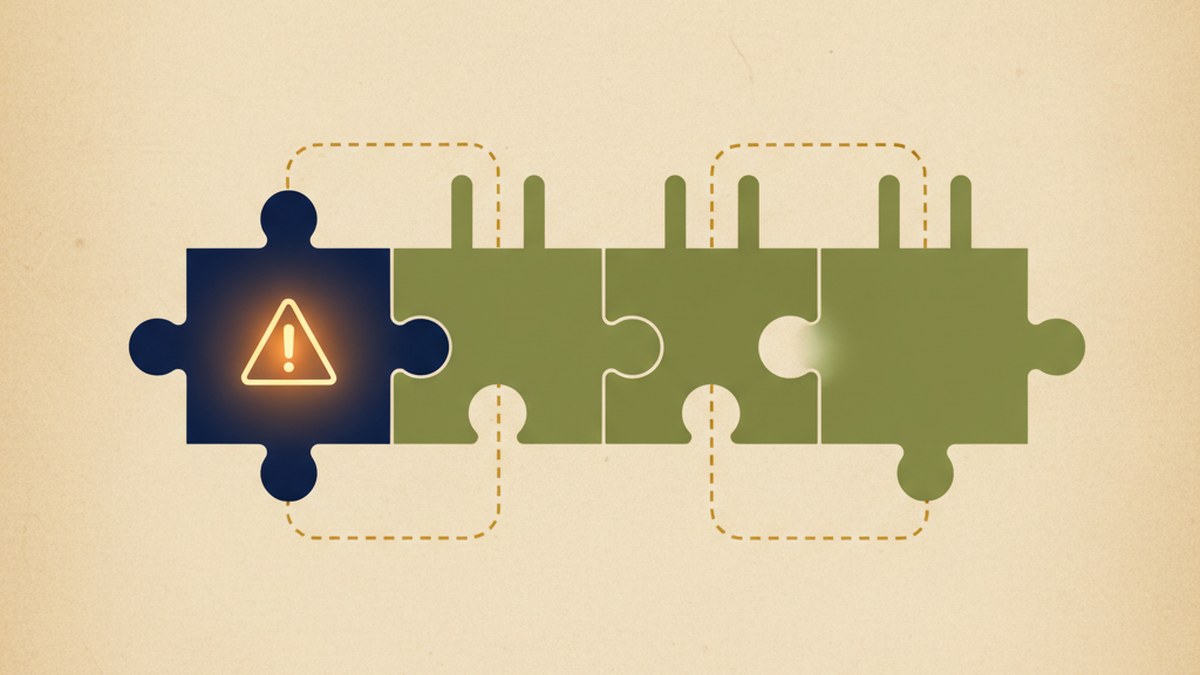
If reactivating did not help, the problem is usually a conflict with another plugin or with your theme. The reliable way to find which one is to deactivate everything and turn things back on one at a time.
Step 1: take a quick backup
Before you touch anything, use your backup plugin (UpdraftPlus, BlogVault, or your host’s built-in backup) to capture the current state. You will almost certainly not need it, but it takes thirty seconds and saves a bad day.
Step 2: deactivate all plugins in one move
If you can reach the admin, go to Plugins, Installed Plugins, tick the checkbox at the top of the list to select all, choose Deactivate from the bulk actions dropdown, and click Apply.
If the admin itself is broken and you cannot log in, deactivate via FTP instead. Connect with your host’s file manager or an FTP client, navigate to /wp-content/, and rename the plugins folder to something like plugins-off. WordPress will see no plugins and deactivate them all. Rename the folder back when you are ready to continue.
Step 3: reactivate one plugin at a time
Now go back to Plugins, Installed Plugins and activate one plugin. Visit the page where you first saw the issue. If the site is fine, activate the next plugin. Keep going. The plugin that brings the error back is your culprit.
This is tedious but reliable. On a site with thirty plugins it takes roughly fifteen minutes, and you end up with a clear answer instead of a guess.
When the plugin itself is the problem
Once you have identified the specific plugin, there are three possible root causes. A quick check of each usually points to the right fix.
- The plugin is out of date. Check Plugins, Installed Plugins for a pending update and apply it, ideally on a staging copy first.
- The plugin is not compatible with your PHP version. Your host probably upgraded PHP recently, and the plugin has not caught up. Either downgrade PHP temporarily (most good hosts let you flip versions in one click), or replace the plugin with a maintained alternative.
- The plugin is genuinely broken in its current version. Check the plugin’s page on the WordPress.org repository, read the recent support threads, and look at the changelog. If other users are reporting the same issue, your fix is usually to roll back to the previous version while the author releases a patch.
For rolling back a plugin to a specific version, the free WP Rollback plugin handles the job cleanly. If rolling back is not an option and no fix is forthcoming, accept that the plugin has reached end of life and switch to a replacement. Sticking with an abandoned plugin is the single most common reason we see beginner sites go sideways.
How to stop plugin failures in the first place
A handful of small habits will cut the number of plugin problems you hit by eighty percent.
- Keep your plugin list short. Every plugin is a dependency. Twenty well-chosen plugins are safer than forty that mostly overlap.
- Update plugins weekly, in small batches. Big batched updates make it harder to spot which one caused trouble.
- Run updates on a staging copy first if your host supports it (most managed WordPress hosts do, in one click).
- Set a calendar reminder to retire unused plugins every six months.
- Keep a working backup. Our guide to backing up WordPress properly covers what a good one looks like.
Try it yourself this week
Before a plugin actually fails, practise the fix on a plugin you do not care about. It is far easier to learn the flow when nothing is on fire.
- Install a small, free plugin you do not normally use, for example Hello Dolly.
- Deactivate it from Plugins, Installed Plugins. Reload the admin.
- Reactivate it. Notice how the admin confirms the state change.
- Rename its folder via FTP (or your host’s file manager) and confirm it deactivates itself.
Five minutes of practice, then the next real plugin failure is a routine job, not a crisis.
Prefer a human to fix it?
If the steps above did not resolve it, or the site is revenue-critical and you would rather not touch the server, the team behind WP Clipboard runs a Liverpool WordPress agency that has been unsticking plugins since 2012. Fixed-price quotes, no long tie-in.
Visit Marketing The ChangeFrequently Asked Questions
Why would a WordPress plugin suddenly stop working?
Four common causes: the plugin was updated and has a bug, another plugin was updated and now conflicts with it, your host upgraded PHP and the plugin has not caught up, or your WordPress core was updated and something in the plugin broke. Nine times out of ten it is one of those, and the fix is to identify which plugin is at fault, then roll it back or find a replacement.
How do I safely disable all WordPress plugins at once?
The simplest way is by FTP or your host’s file manager. Navigate to /wp-content/ and rename the plugins folder to something like plugins-off. WordPress will treat every plugin as missing and deactivate them in one move. Rename the folder back when you are ready, and all plugins will be present but switched off.
Can I fix a broken plugin by editing its code?
You can, but you should not unless you really know PHP. A code edit survives until the next plugin update, at which point it is overwritten and you are back to square one. Either wait for the developer to release a fix, or switch to a replacement plugin. Editing plugin code is usually a short-term patch that creates long-term mess.
Is it safe to update plugins on a live WordPress site?
It is usually fine for small sites that take a backup first and visit a couple of key pages after each update. For anything that makes money, staging first is the right habit. A staging copy takes thirty seconds on most managed hosts and will catch ninety percent of update problems before your visitors do.
Where do I go if I cannot log in to WordPress at all?
If the plugin failure is bad enough to lock you out of the admin, the plugins-folder rename from the previous answer will almost always restore access. Once you are back in, reactivate plugins one at a time to find the culprit. The official WordPress admin guide covers the other ways back in if the rename does not help.