Running a successful WooCommerce store requires more than just offering great products—it demands constant vigilance against fraud, spam, and malicious activity. One of the most common challenges store owners face is dealing with unwanted registrations and spam orders, which not only waste time but also threaten your business operations and reputation. A highly effective solution to combat this issue is using Email Blacklisting in WooCommerce. By blocking suspicious or known spam email addresses, you can proactively prevent fake orders, reduce admin burden, and keep your store’s environment secure and professional.
Thankfully, with tools like the Aelia Blacklister plugin, WooCommerce store owners now have a powerful, easy-to-use solution to tackle this issue head-on. By blacklisting specific email addresses and domains, you can take control of who interacts with your store, enhancing both its security and customer experience. For more on strengthening your store’s defenses, check out this guide on boosting WooCommerce security by blocking fraud IPs and emails.
Why Email Blacklisting Is Essential for WooCommerce
The open nature of e-commerce makes it an attractive target for scammers and bots. Fake accounts, fraudulent purchases, and spam form submissions can quickly disrupt your operations, cost you money, and damage your brand’s trustworthiness.
Email blacklisting in WooCommerce offers a straightforward yet highly effective solution to address these issues. By proactively blocking suspicious email addresses or domains, you can:
- Stop spam accounts before they register
- Prevent chargebacks from fraudulent transactions
- Maintain an authentic customer base
- Protect your store’s data and resources
- Improve your customer support team’s efficiency
With Aelia’s email blacklisting feature, you’re not just reacting to problems—you’re preventing them before they happen.
Understanding Email Blocking in WooCommerce
Email blocking allows you to restrict access to your WooCommerce store based on email patterns or entire domains. This is especially useful for eliminating users associated with known fraud, bots, or spam.
Let’s say you’ve received several suspicious orders from emails like spamuser@mailfraud.com or *@fakebuyers.net. With Aelia’s plugin, you can block individual emails or full domains so those users can no longer create accounts or place orders.
This functionality is crucial for keeping your store secure, especially if you’re dealing with recurring attacks or repeated spam from similar sources.
Meet the Plugin: Aelia Block Emails for WooCommerce
The Block Emails for WooCommerce plugin by Aelia is designed specifically to make email blacklisting seamless and straightforward.
Core Features:
- Block Specific Email Addresses
Add individual email addresses like badactor@example.com to your blacklist. - Block Entire Domains
Block whole domains such as @fraudmail.com to stop any user from registering with emails from that provider. - Custom Error Messages
Display user-friendly or firm error messages when blocked users try to register or check out.
How to Set It Up (In Just a Few Minutes)
Getting started with the plugin is simple and doesn’t require advanced technical skills. Here’s a step-by-step guide:
Step 1: Upload the Plugin Files
You can either upload the plugin via the WordPress dashboard or manually place it in the wp-content/plugins/wc-block-emails directory.
Step 2: Activate the Plugin
Go to your WordPress dashboard, navigate to Plugins, and click “Activate” next to the plugin name.
Step 3: Configure the Plugin
Head to WooCommerce > Settings > Block Emails. Here, you can:
- Add emails or domains to be blocked
- Customize error messages
- Enable bulk import if you have a large list of spammy users
Once set up, any user trying to use a blacklisted email will see your custom error message and be denied access instantly.
Why Bulk Blocking Is a Game-Changer
If your store receives dozens or even hundreds of spam registrations per week, entering emails one by one isn’t realistic. That’s where bulk blocking comes in.
With the Aelia plugin, you can upload entire lists of emails and domains, saving you hours of manual work. Whether it’s a spreadsheet of known fraud accounts or a collection of banned domains, you can apply them all at once.
Feature Summary at a Glance
| Feature | Description |
| Ease of Use | Intuitive setup and user interface |
| Customisation | Define custom messages for blocked users |
| Bulk Email Blocking | Upload large lists of blacklisted emails and domains |
| Compatibility | Works with classic WooCommerce checkout systems |
| Enhanced Security | Prevents spam, fake orders, and fraudulent users from accessing your store |
| Minimal Maintenance | Set it and forget it—let the plugin do the work in the background |
Going Beyond Emails: Aelia Blacklister for WooCommerce
While email blocking alone is powerful, Aelia takes things a step further with its full Blacklister plugin. This tool allows you to create layered protection by targeting:
Email Addresses
Use exact matches or regular expressions to block addresses or patterns.
IP Addresses
Block specific IPs, IP ranges, or entire geographies using CIDR or wildcard notation.
Phone Numbers
Prevent checkout attempts from numbers associated with fraud.
Customer Names
Automatically reject names linked to previous suspicious orders or spam.
Bulk Upload Capability
Manage all of the above in bulk using .csv files or similar formats.
With this robust set of controls, you can fine-tune your store’s defense system to match your specific threat landscape.
Benefits of Blocking Email Addresses in WooCommerce
Implementing email and identity blacklisting doesn’t just stop fraud—it brings broad operational and strategic benefits:
Enhanced Store Security
Filter out suspicious users before they create problems.
Fewer Spam Orders
Keep your order queue clean and focused on real customers.
Improved Reputation
Create a safer, more trustworthy experience that encourages repeat business.
Cost Savings
Avoid chargebacks, refunds, and the cost of manual fraud resolution.
Better Shopping Experience
Ensure your real customers get the attention and service they deserve.
Streamlined Operations
Save admin hours by automating fraud prevention tasks.
Data Compliance
Ensure you’re taking the necessary steps for GDPR or similar data protection standards.
Setting Up Aelia to Block Email Addresses
To effectively block email addresses in WooCommerce while using Aelia, integrate the “Aelia Blacklister for WooCommerce” plugin. Follow these steps to set up the necessary plugins and configure the blocking settings.
Step 1: Install the Plugin
- Go to the Plugins section of your WordPress dashboard.

- Click on Add New Plugin

- Select Upload Plugin

- Click Choose File, then select the Aelia Blacklister plugin zip file you downloaded from the Aelia website.
- Click Install Now.
- Once the plugin is installed, click Activate.
Step 2: Access the Plugin Settings
- After activation, go to WooCommerce and click on it.
- Look for the Blacklister tab in the settings menu (it might appear under the Aelia tab depending on the version of WordPress).
- Click on the Blacklister tab to access the plugin’s settings.
Step 3: Block Email Addresses
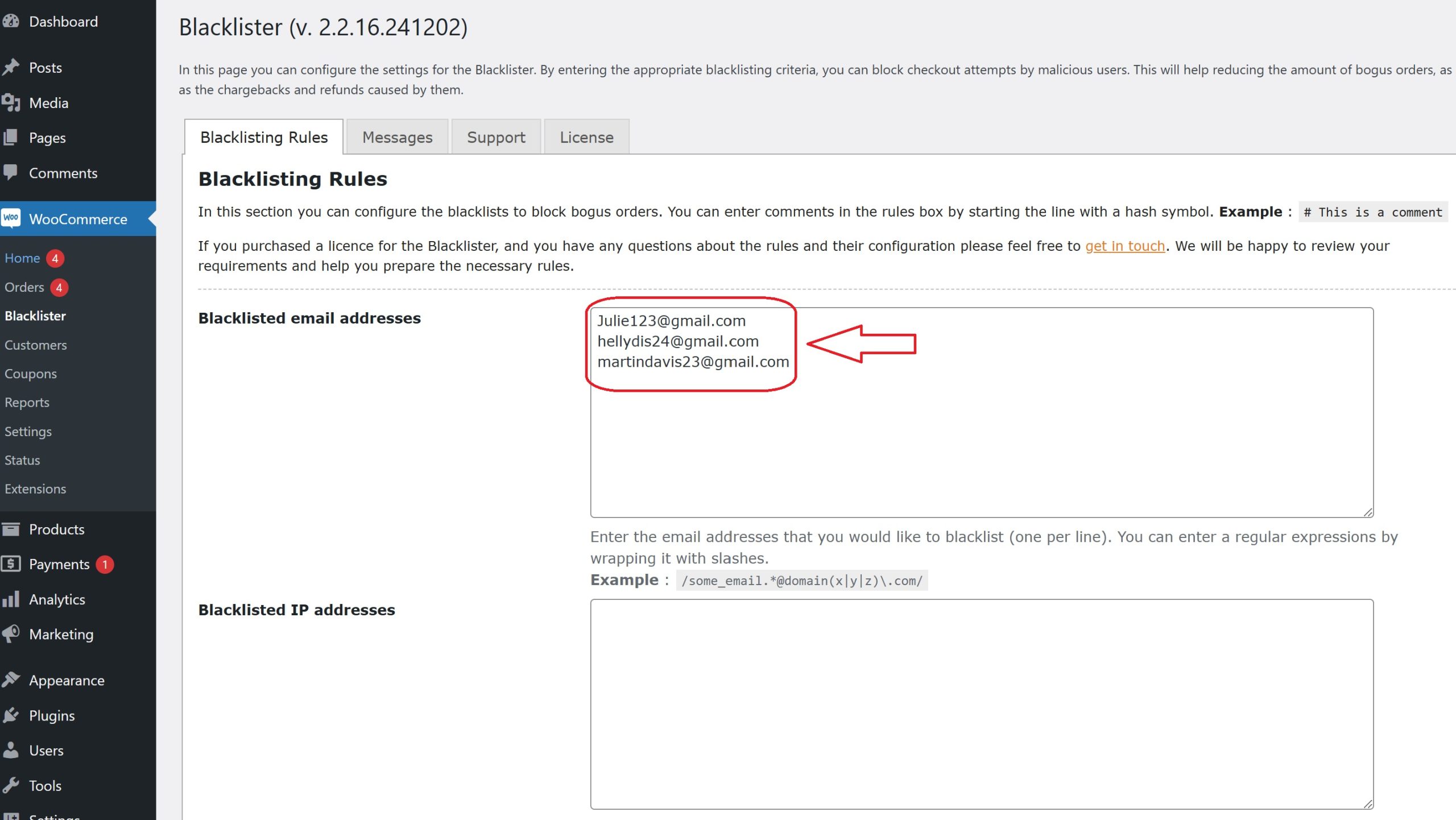
- In the Blacklister settings, find the option called Blacklisted email addresses.
- Enter the email addresses you want to block in the provided text field (you can block multiple email addresses by separating them with commas or entering them one by one).
- After entering the email addresses, Scroll Down and click Save Changes.
Step 4: Test the Configuration
- Go to your WooCommerce checkout page.
- Try to register or make a purchase using one of the blacklisted email addresses.
- If the plugin is correctly set up, the user will not be able to complete the purchase or registration.
How to Get Support for the Aelia Blacklister for WooCommerce Plugin
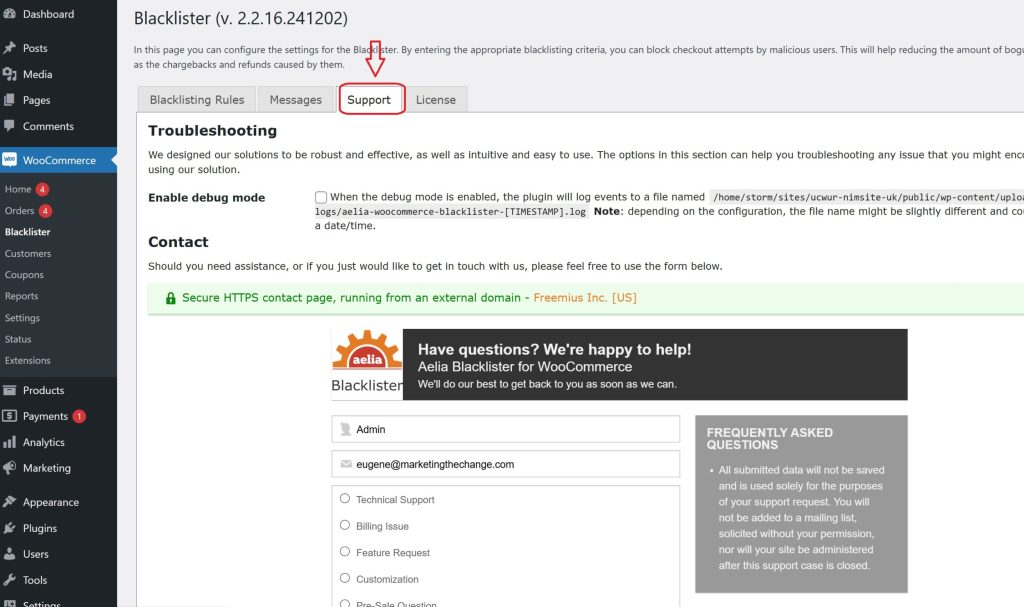
Getting support for the Aelia Blacklister for WooCommerce plugin is quick and hassle-free. Simply navigate to the plugin’s Support section within your WooCommerce settings. There, you’ll find a comment box where you can describe any technical issues, configuration challenges, or questions you may have. Once submitted, Aelia’s responsive support team will review your request and provide tailored assistance to help you resolve the issue promptly.
Whether you’re facing trouble with email blacklisting rules, bulk uploads, or plugin compatibility, Aelia’s team is ready to help ensure your store runs smoothly and securely.
Enhance Your Store Further
If you’re looking to improve your WooCommerce setup even more, consider using the Tax Display by Country for WooCommerce plugin by Aelia. This powerful tool automatically adjusts tax visibility based on a customer’s geographic location, creating a more seamless and localized shopping experience, especially useful for international stores.